

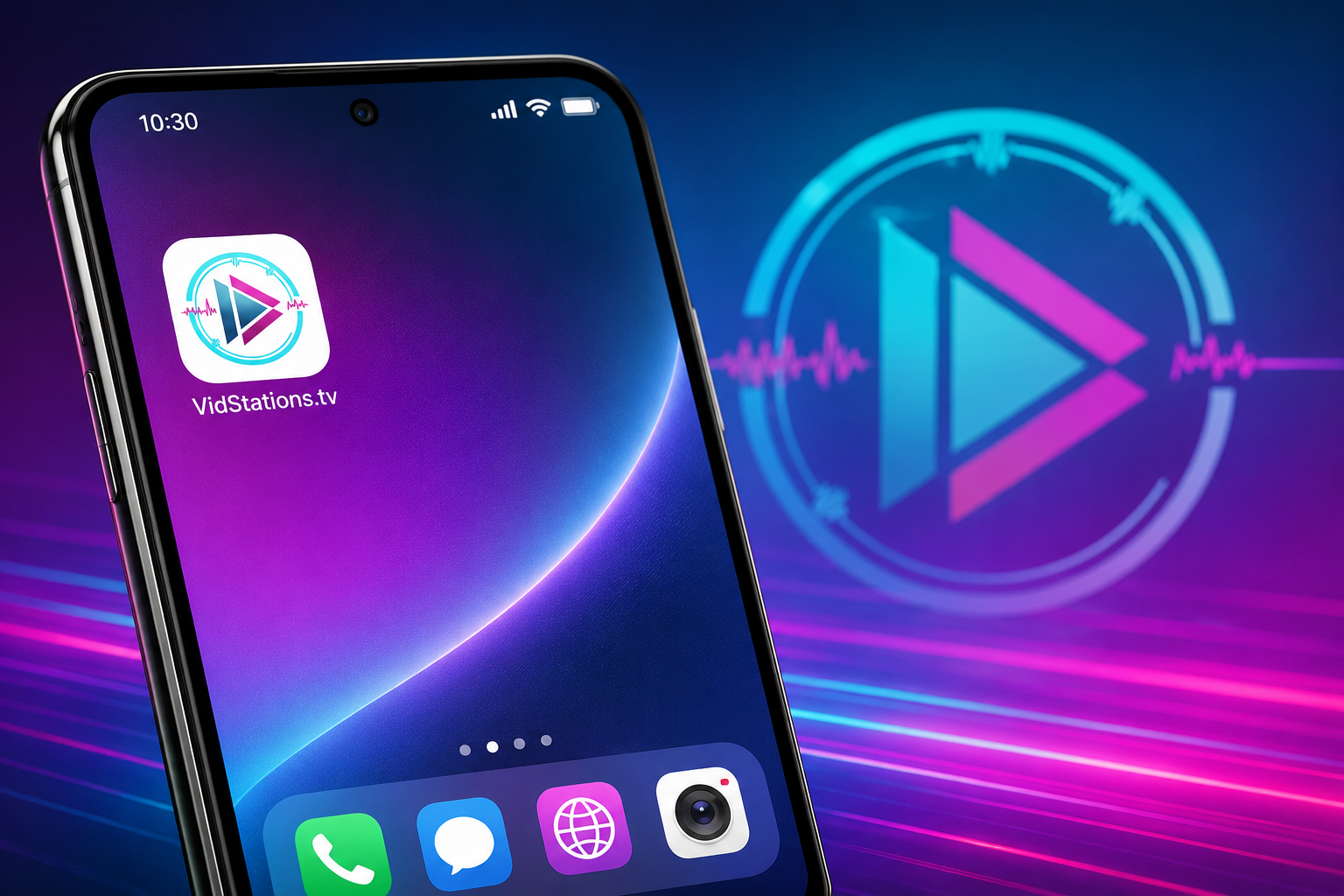
No App Store Required: How to Add the VidStations.tv Web App Directly to Your Home Screen
We hear you loud and clear! One of the most frequent requests we get in our Facebook comments and chat feeds is: "Where is the app download link?" or "When are you releasing this in the App Store?"
Here is a quick piece of insider tech-secret history: You don’t need the App Store. Instead of forcing you to waste space on your phone downloading a massive, clunky application package, we built VidStations.tv using modern Progressive Web App (PWA) technology. This means you can save VidStations right to your phone's home screen as a full-screen, borderless app with an icon in less than 5 seconds.
No store passwords, no downloads, just 100% full-screen ready to party mode. Here is exactly how to do it on your Apple or Android device.
📱 How to Install on iPhone & iPad (iOS)
Apple hides the installation button inside their native browser share menu, but it takes just a few taps to unlock:
Open the Safari browser on your iPhone or iPad.
Navigate to VidStations.tv.
Tap the Share button at the bottom or top of the screen (the square icon with an arrow pointing upward that is sometimes under the ... menu).
Scroll down through the options menu and tap Add to Home Screen.
Tap Add in the top right corner.
Boom! A clean, neon-styled VidStations app icon will instantly appear on your home screen. When you tap it, the site will launch full-screen without the standard browser search bar clutter.
🤖 How to Install on Android Devices (Google Chrome)
Android makes the setup incredibly obvious, often prompting you the second you land on the site:
Open the Google Chrome browser on your phone.
Go to VidStations.tv.
Look for the pop-up banner at the very bottom of the Vidstations home screen that reads "Install VidStations to Home Screen" and tap it. Click install when the popup comes up.
If you don't see the banner: Tap the three vertical dots (Menu) in the top right corner of Chrome.
Select Install app (or Add to Home Screen).
🛑 IMPORTANT: Seeing an "Unsafe App Blocked" Message on Android? If you are using a newer Android tablet or phone, Google’s built-in security scanner (Play Protect) might occasionally trigger a scary-looking false alarm that says: "Unsafe App Blocked. This app was built for an older version of Android..."
Don't panic! Your device is completely safe. Because we aren't using the corporate Google Play Store, your browser is instantly building a secure, custom shortcut file right on your tablet. Because Google's automated security scanner doesn't recognize this brand-new, locally generated shortcut, it defaults to an overprotective security warning. It has absolutely nothing to do with your actual privacy or data safety.
How to bypass the glitch in 2 seconds: When the warning box pops up, look at the bottom of the message and tap "More details" (or a small downward arrow).
Tap "Install anyway".
The warning will immediately disappear, and your neon VidStations icon will drop right onto your home screen, ready for action!
💻 How to Install on a Windows PC or Laptop
If you are tuning in from a computer, you can break VidStations out of your crowded browser tabs and run it as a standalone desktop app. It takes exactly two clicks:
Open Google Chrome or Microsoft Edge on your computer.Go to VidStations.tv.Look closely at the right side of your browser's top address bar (where you type the URL). You will see a small Install Icon appear:
In Chrome: It looks like a small monitor monitor with a downward arrow.
In Edge: It looks like a cluster of three squares and a plus sign ("App available").
Click that icon and select Install.
Boom! The browser layout instantly drops away, launching VidStations in its own sleek, standalone window. A shortcut will automatically drop onto your Windows Desktop and Start Menu, and you can right-click it to pin it directly to your taskbar!
⚡ Why This is Better Than a Standard Mobile App
By keeping our platform on the open web as a PWA, you get a much cleaner viewing experience:
Zero Device Overhead: It uses practically zero storage space or battery drain because it doesn't require a heavy installation framework.
Instant, Seamless Updates: You never have to wait for an app store download to complete to get new features. The exact millisecond we deploy a brand-new game feature, fix a bug, or optimize our chat panel, it updates on your phone automatically.
Keep Your Coins: Because we aren't tethered to corporate app store marketplaces, we don't have to hand over a massive 30% digital tax to Apple or Google. That means we can keep our custom Station Coin Packs perfectly optimized for our community without artificial corporate markups.
Go ahead, take 5 seconds to add the icon to your screen right now, and we'll see you in the front row for the next music video party!